


Supported Databases
Database Tour can work with database links in Oracle and PostgreSQL databases.
Notes
- The current database user must have the corresponding permissions to work with these objects.
- In PostgreSQL, database links are named as foreign servers.
To work with database links, use the corresponding tab of the Object Browser.
Creating Database Links or Foreign Servers
To create a database link from scratch, click New button  of the Object Browser. The new SQL editor will be opened with the skeleton of the database link SQL code. Complete the code and click Execute button
  . If necessary, read the documentation for your database.
Note: For PostgreSQL database, after executing your SQL code for a foreign server, if you work in the no auto-commit mode, finish the transaction by clicking Commit button.
Deleting Database Links or Foreign Servers
To delete (drop) a database link, select the needed object in the list of database links and click Delete button.
To delete several database links, right-click the list and choose Multiple Selection. Then select needed database links and click Delete button.
Hint: Database links can also be deleted by the corresponding SQL command.
Opening Existing Database Links or Foreign Servers
Switch to the corresponding tab of the Object Browser. Locate the needed db link or server and select it. This will open a new sub-window displaying the object's properties. Switch to the Script tab to view the DDL code.
Hint: If you double-click the object name in the list, the sub-window will be opened with the Script tab activated.
Editing Existing Database Links or Foreign Servers
Open the needed object (see above) and switch to the Script tab. Then click Copy to Editor button  . The new SQL editor will be opened with the DDL code of the object. Modify it accordingly and click Execute button .
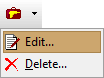
Another way to edit the object is to use the Utilities button  on the General tab. Note: Double-clicking the grid on the General tab invokes the editing interface too.
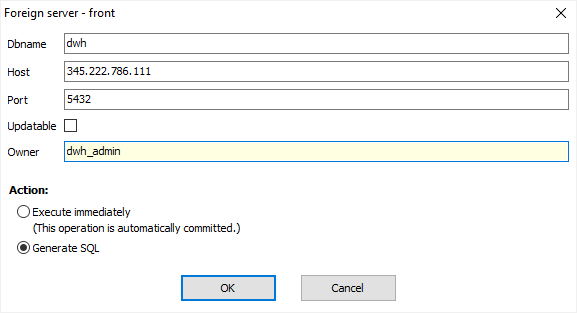
Example of editing a foreign server in PostgreSQL database: